How to Organize Outlook Email With Folders and Rules

Ulric Musset · CEO, Marblism

TL;DR
Organize Outlook email in four steps: turn on Focused Inbox to stop the noise arriving, create three folders built around what you have to do, add categories for what a message is about, then set up rules only for mail you never need to see. Every Outlook organizing system fails the same way: it moves mail somewhere you stop looking. The setup that survives is the smallest one that keeps everything visible.
Start with whichever symptom is breaking your inbox right now: if noise drowns the important messages, Focused Inbox handles that; if you forget what needs replies, the action folders handle that; if you cannot find by topic, categories work across folders where folders alone cannot. Each step handles what the previous one leaves behind, and rules without those folders just move the hiding problem somewhere else.
Why Outlook organizing systems fall apart
Most Outlook organizing systems fail because they solve the wrong problem. They move email out of sight, and the person who built the system stops looking where they put it. The fix always sounds logical: create a folder for every client, write a rule for every sender, flag everything urgent. A few weeks later the folders are full, the flags are meaningless, and the anxiety is worse than before.
The pattern shows up constantly in the people actually living with it.
One Reddit user in r/work put it plainly:
"I've tried labels, folders, flags, filters, and inbox zero, but it always falls apart after a few weeks. The emotional part is honestly the worst: every time I open my inbox, I feel behind before I even start working."
u/Better-Advice-5197, r/work
The same collapse hits operations roles where the sheer volume makes any manual sorting system obsolete within days. A construction manager in r/ConstructionManagers described getting an obscene number of emails daily and still falling behind despite trying new methods. When the inbox refills faster than you can sort it, the folders just become additional places you stop checking.
A lawyer in r/Lawyertalk skipped the organizing question entirely and went straight to what the mess actually feels like:
"But everytime I open my outlook in the morning, my heart starts racing and I'm afraid of what I'll see."
u/Ill_Sugar_6173, r/Lawyertalk
The shared-inbox version of the problem carries the same hiding mechanism with a different trigger. A small team managing a shared mailbox together gets 60 emails a day where nearly every message requires full attention. When you cannot ignore a single message and you also cannot file it somewhere only you see, the organizing system has to work for everyone checking the mailbox, and any folder one person creates is a folder the others never open.
The common thread across these situations is that every system they tried worked by hiding mail. A folder buries it, a filter diverts it, a flag pushes it below the fold. The system does not fail because the person is lazy. It fails because moving a message out of view is the same as deciding it does not matter, and nobody trusts that decision a month later.
They stop checking the folders. The rules keep running. The backlog grows somewhere they never look.
That is the thesis behind the four steps that follow. The system that survives is not the one that sorts the most mail. It is the smallest setup that keeps everything visible.
Key takeaways for organizing Outlook email
Four inbox problems, the step that solves each one, and where the control lives in Outlook.
| Your problem | The step that fixes it | Where it lives |
|---|---|---|
| Noise drowns the important messages | Step 1: Focused Inbox | View > View Settings > Mail > Message List |
| You forget what needs a reply | Step 2: 3 action folders | Right-click inbox, New Folder |
| You cannot find messages by topic | Step 3: Color-coded categories | Home tab > Categorize |
| Newsletters and receipts clog the inbox | Step 4: Rules for mail you never read | Right-click message > Rules |
Which version of Outlook are you using?
Outlook is three different clients, not one: New Outlook, Classic Outlook, and Outlook on the web. Which of them is open on the machine in front of you decides the menu path for every step that follows, so check before you start. If you are running a shared bookings@ or info@ address on a work laptop someone else set up, there is a real chance you are on a version you did not choose.
Microsoft is actively migrating users from Classic to New Outlook, and the difference is not cosmetic. Features you will rely on in Steps 2 through 4, like the full Rules Wizard and custom Search Folders, exist in Classic but are missing or limited in New Outlook.
Microsoft splits its own documentation the same three ways (with separate pages for Mac and Mobile), and tells you what to do if you guessed wrong. The Focused Inbox support page carries this note: "If the steps under this New Outlook tab don't work, you may not be using new Outlook for Windows yet. Select the Classic Outlook and follow those steps instead." The steps in this guide follow the same three-way split.
The migration is already breaking things. Users on Microsoft's own support forums report that "Run Rule Now..." is missing in New Outlook, folder renaming breaks, and local "On My Computer" folders disappear on Mac after switching.
Here is what each client supports for the features the four steps depend on:
| Feature | New Outlook | Classic Outlook | Web |
|---|---|---|---|
| Focused Inbox | Yes | Yes | Yes |
| Search Folders | Predefined types only | Yes (fully custom) | Predefined (work/school account) |
| Rules Wizard | No | Yes | No |
| Local .pst folder support | No | Yes | No |
| "Run Rule Now..." on existing mail | No | Yes | No |
If you are on Classic Outlook, every step works as written. If you are on New Outlook or the web client, the core workflow still applies, but specific paths will differ and a few power features are not available yet. Each step notes the version where a path diverges.
Step 1: Turn on Outlook's Focused Inbox so the noise stops arriving
Focused Inbox is Outlook's built-in filter that splits your inbox into two tabs, Focused and Other, using machine learning that learns which senders and topics you actually engage with. Everything else, the bulk mail, the automated notifications, the newsletters you signed up for three years ago, lands in Other. It is the only step in this system that acts before you see the message, which is why it goes first.
The same algorithm once powered a feature called Clutter. Microsoft retired Clutter and moved the logic into Focused Inbox, so if you remember training Clutter years ago, that history still carries forward.
How to turn on Focused Inbox (New Outlook)
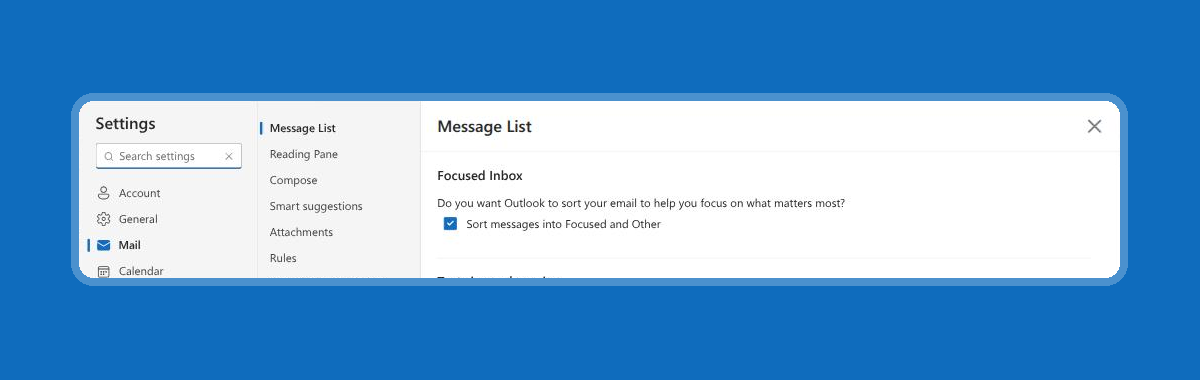
Go to View > View Settings > Mail > Message List, find "Sort messages into Focused and Other", select the account you want it on, and hit Save. That is the full path.
One detail will trip you up: Microsoft's own support page still routes you to Mail > Layout for this checkbox, and most of the advice written from it repeats that. In the current build, Layout is a different section further down the same pane, and it controls how many rows each message uses. The Focused Inbox checkbox sits at the top of Message List. If your version still shows a Layout entry in that list, it is the same setting under the older name.
Train Focused Inbox in 30 seconds
Right-click any message, choose Move, then pick "Always move to Focused inbox" or "Always move to Other inbox." This applies to all future messages from that sender, and the model adjusts around your corrections. The first week takes a handful of right-clicks. After that, the filter mostly runs itself.
Pair Focused Inbox with a scheduled read of Other
Other is not a hidden folder. It is a tab one click away inside the same inbox view, and that distinction matters. The organizing systems that fail are the ones that move mail somewhere you stop checking.
Set a single daily appointment, 5 minutes, to scan Other. You are not processing it. You are catching the one message the filter got wrong before it sits there for a week.
Focused Inbox does not work on shared mailboxes
If you run a shared mailbox (the info@ or bookings@ address your team reads together), Focused Inbox will not work. Microsoft's own documentation is direct about this: "If you're using a shared mailbox, Focused Inbox will not work. This is by design." For shared mailboxes, skip straight to Step 2 and build the folder structure there instead.
What Focused Inbox does not solve
Focused Inbox sorts what arrives. It does not sort what you owe. After a week with it on, the Focused tab will be quieter, but it will still fill with messages you have read and not acted on: the quote you need to send, the booking you need to confirm, the question you need to answer. That backlog is what Step 2 is for.
Step 2: Build three Outlook folders around what you have to do
Focused Inbox sorts what arrives, not what you owe. After a busy morning your Focused tab still fills with messages you opened, understood, and never acted on: the quote you never sent back, the booking you never confirmed, the customer question sitting unanswered since Tuesday. None of that is "Other" mail. It is all Focused, and it is all waiting on you.
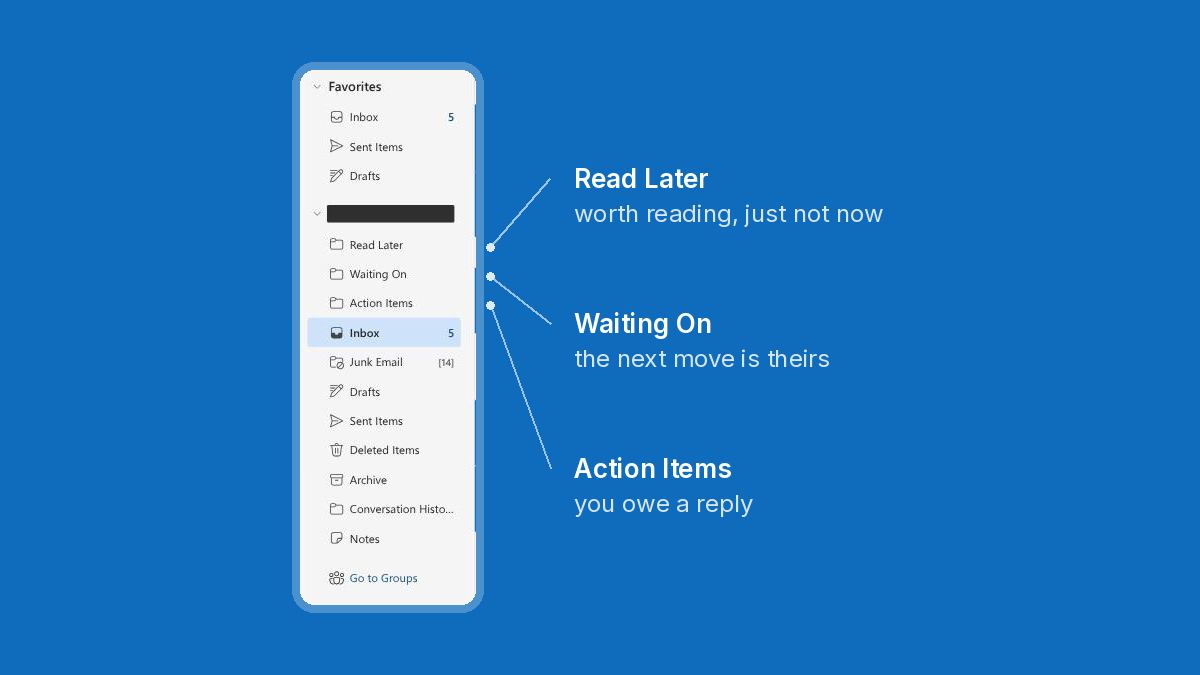
The fix is 3 folders named after what you need to do, not what the message is about. Kevin Stratvert demonstrates the same 3-folder system, and these are his names for them:
- Action Items: mail you owe someone a response on right now.
- Waiting On: mail where you already replied and the next move is theirs. A signature you need back, a shipment tracking number, a contractor who said "by Friday."
- Read Later: mail worth reading but not worth reading right now. Newsletters, long proposals, internal threads you will catch up on this weekend.
The exact count matters less than the principle. Every folder answers one question: What does this message need from me? Some setups add a reference bucket for keep-but-no-action mail, and that is fine as long as it still answers that question. The folder structure serves you only when each one has a clear purpose you can state in five words.
How to create a folder in Outlook
Microsoft Support documents the procedure per client version:
New Outlook (Windows)
In the folder pane on the left, right-click your email address (or hover over it and select More options), choose "Create new folder," type the name, and press Enter. For subfolders: right-click the parent folder and choose "Create new subfolder."
Classic Outlook (Windows)
In the left pane of Mail, right-click where you want the folder, select "New Folder," enter the name in the Name box, and press Enter.
Outlook on the web
In the folder pane, right-click "Folders" (or hover and select More options), choose "Create new folder," name it, and press Enter. For subfolders: right-click the parent folder and choose "Create new subfolder."
Create the 3 action folders (Action Items, Waiting On, Read Later) as top-level folders or Inbox subfolders. Either works. A subfolder keeps them under the Inbox where you already look.
A note on flags. If a message in Action Items needs a due date, flag it. Do not create a separate folder for flagged mail. Flagged messages automatically populate the "For Follow Up" Search Folder and sync into Microsoft To Do with a link back to the original message. The flag adds a deadline on top of the folder, not instead of it.
A fourth folder some people add is Calendar: emails about upcoming events, calendar invites, Teams and Zoom meetings. Once the date has passed, the email can be deleted. That works if calendar noise fills your inbox. I would keep it to 3 until you find yourself searching for the same kind of message twice.
Three folders track what you need to do with a message. They do not track what a message is about. A client email about a late payment and a client email about a new project both land in Action Items, and you cannot tell them apart at a glance. A message can only live in one folder, so the moment you need to see every message tied to a specific client or project across all 3, folders alone stop working.
Step 3: Use Outlook categories for what a message is about
Folders answer what you must do, not what a message is about, and a message can only live in one folder. The invoice from your web designer sits in Action Items and the one from your accountant sits in Waiting On, and neither is findable by the word "invoice." Categories fix that by layering topic labels on top of your action folders.
Outlook categories are color-coded tags that label what a message concerns, and unlike folders, a single message can carry as many categories as it needs. Folders hide mail because you have to click into each one to see what is there, and a message can only sit in one folder. Categories tag across folders and keep everything searchable from one place. A folder is a location you have to visit. A category is a label you can search and filter from anywhere.
To assign a category, right-click any message and choose Categorize, or use the Categorize button on the ribbon. The defaults ship as generic color names (Red Category, Blue Category), but they are fully renameable and recolorable. To create a custom category, go to Categorize > New category and name it after your actual work: Invoices, Project Alpha, Leads. If you spend as long picking a category as you would filing into a folder, the list has too many.
For central management, the path depends on your version. In New Outlook: Settings > Account > Categories. In Classic Outlook: the All Categories dialog. Set your list once and it applies across your mailbox.
One limitation worth knowing upfront: categories are not available on IMAP accounts. If your mailbox connects through IMAP rather than Exchange or Microsoft 365, the Categorize option will not appear.
That settles the folders-versus-categories question. Folders track what you need to do. Categories track what the message concerns. The two work together.
But categories still require you to look at each message and decide which tag it deserves. For the mail you never need to look at, tagging by hand is wasted motion.
Step 4: Add Outlook rules only for mail you never need to see
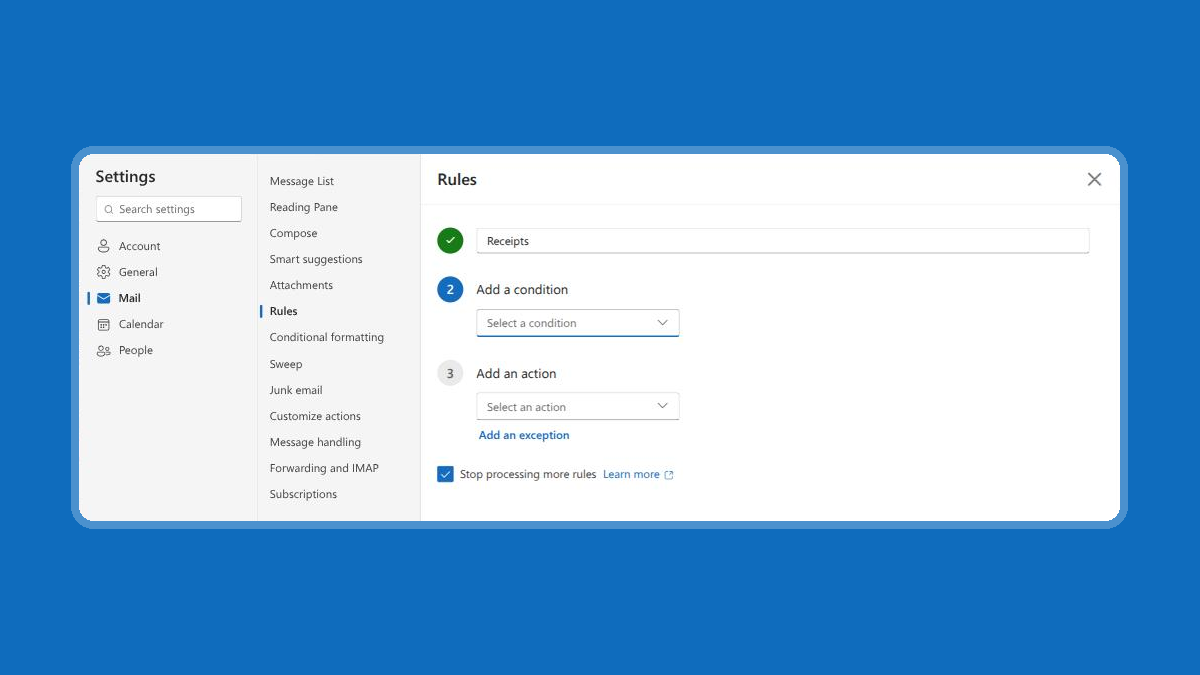
Outlook rules handle the mail you should never have to look at. Categories still require you to open a message and decide what it is about. Rules skip that: they automatically move, flag, forward, categorize, or delete incoming mail the moment it arrives, based on conditions you set once.
A rule is one condition plus one action. What you can match on:
- Who it is from or who it went to (From, To)
- Words in the subject, the body, or both
- Whether it carries an attachment
- Its importance level
What Outlook can then do with it:
- Move it to a folder, or copy it
- Delete it
- Mark it as read
- Apply a category
- Flag it
- Forward it
Build rules only for mail that follows a rigid pattern and never needs your attention: automated receipts, system alerts you monitor through a dashboard, distribution lists you read in batch. If a message might occasionally matter, it does not belong in a rule.
Server-side vs. client-side Outlook rules
Server-side rules run on Microsoft's servers no matter which device you use. Client-side rules only fire while Outlook desktop is open. If you build rules on your laptop and check mail on your phone over the weekend, every client-side rule sits idle until Monday.
The trap: a "move to folder" rule is server-side by default and works everywhere. But add a "notify me" action to the same rule and Outlook demotes the whole thing to client-side. Your phone and webmail never see those messages move, because the rule is waiting for the desktop app to launch.
Keep Outlook rules in order with "stop processing more rules"
Outlook runs rules top to bottom. Without the "stop processing more rules" checkbox, a single email can trigger 3 rules and end up moved, flagged, and forwarded in ways you did not intend. Turn it on for any rule whose action is a move or delete, so the message lands in one place and stays there.
What Outlook rules cannot do
Rules match senders and strings. They cannot tell an urgent customer email from a routine one when both come from the same address, and they never draft a reply. Once you have cleared the noise with Focused Inbox, organized what needs action into folders, labeled topics with categories, and automated the predictable leftovers with rules, what remains is mail that needs judgment, not sorting.
One commenter on r/automation put it plainly after walking through Outlook's Run Rules Now and bulk search-and-drag: "that's the genuinely hard 20%, and it's basically a classification problem at that point. You need to use an LLM for that." That is the job Eva was built for: reading the message, deciding what it actually requires, and acting on it.
How to clear an Outlook inbox backlog you already have
Set up once, that system files mail as it arrives. It does not reach back: the 2,000 messages already sitting in your Outlook inbox stay exactly where they are until you do something about them. You can of course select old mail and categorize or move it by hand, and Classic Outlook can even re-run a rule over a folder you already have. That command is "Run Rules Now", and New Outlook drops it. But hand-filing 2,000 messages is the job you were trying to avoid, so Outlook gives you two bulk tools instead: Archive and Sweep.
Start with Archive. Archive is a one-click move that takes a message out of your inbox and drops it into an Archive folder while keeping it fully searchable. Select everything older than a week, hit Archive, and your inbox shrinks to what actually needs attention today.
On Microsoft 365 business plans, an in-place archive mailbox keeps that mail searchable inside Outlook without touching your primary storage. Microsoft's Exchange Online limits put Business Basic and Standard at 50 GB primary plus 50 GB of archive, and Business Premium at 50 GB primary plus 1.5 TB of archive.
Classic Windows Outlook handles this differently. AutoArchive moves or deletes items older than a set age into a local .pst file. That .pst lives on your machine, not in the cloud, so it is searchable only when the file is connected. If you work across devices, the in-place archive on a business plan is the better path.
Then use Sweep for the repeat offenders. Sweep is a bulk-cleanup tool available in Outlook on the web and New Outlook. Pick a sender, then pick what happens to everything they send you:
- Move all future messages to a folder
- Delete every message from them you already have
- Delete every message from them, now and in future
- Keep only the latest message and delete the rest
- Delete anything from them older than 10 days
For the newsletter you subscribed to 3 years ago and never read, "Delete all messages from the Inbox folder and any future messages" clears the backlog and stops the next one in a single action.
Two constraints worth knowing. Sweep is unavailable in Junk Email, Drafts, Sent Items, and Deleted Items, so you need to work from your inbox or a regular mail folder. And Sweep rules run once per day in a batch, not instantly on arrival like inbox rules. A message from a swept sender might sit visible for a few hours before the next batch runs.
Between Archive and Sweep you can clear a cluttered Outlook inbox in one sitting. If you want a step-by-step walkthrough of the zero-inbox push itself, I wrote a separate guide on reaching inbox zero in 10 minutes.
How to check your Outlook system is actually working
Search Folders let you see every message matching a criterion across your entire mailbox without moving anything out of the folders you built. Set up the built-in Unread Mail preset and you have a single view that aggregates unread messages from every folder and subfolder. That is the fastest answer to "where did that email go" once you have more than 3 folders.
New Outlook and Outlook on the web now offer 13 predefined Search Folder types, from Unread Mail and Flagged for follow-up through Categorized mail, Mail with attachments, Large mail, and Old mail. I would pin 2 of them: Unread Mail and Flagged for follow-up. Unread Mail catches anything you have not opened regardless of which folder a rule filed it into. Flagged for follow-up catches anything you flagged in step 2 but have not resolved.
Fully custom Search Folders, with your own criteria beyond that predefined list, are Classic Outlook only; New Outlook and the web stick to the predefined types, though each one can be scoped to chosen folders and subfolders, and the web needs a work or school account. If you need a filter beyond the predefined types in New Outlook, the search box is the fallback: Outlook search takes the same criteria as a filter (sender, subject words, date range, attachments) and searches across your folders, so you can reach the same result without a saved folder to hold it.
For quick spot checks, Sort & Filter changes your current view without moving mail. Sort any folder by Date, Category, Sender, Size, Importance, or Subject. Refine further by filtering on From, Subject, Has Attachment, Categorized, Unread, Flagged, or Important. Sorting by Category groups messages by the color codes you assigned in step 3, so you can see every "Client" or "Invoice" email in one scroll regardless of which action folder it sits in.
Both features answer the same question: is anything slipping through? If a Search Folder shows unread mail piling up in a folder you forgot existed, the fix is a new rule, not a new folder.
What breaks an organized Outlook inbox, and how to stop it
An organized Outlook inbox does not stay organized on its own. The folders, rules, and categories that keep it clean only work while you maintain them. Every failure I see follows the same pattern: something in the system stops getting attention, and mail piles up somewhere you no longer look.
Focused Inbox stops working when you never check Other
Focused Inbox sorts your mail into two tabs. The failure is treating Other as a junk folder you can ignore. Outlook does not hide Other from you, but it does stop notifying you about it: Microsoft's own description is that mail on the Other tab stays "easily accessible" but "out of the way." Out of the way is the whole risk. A misfiled customer email sits there behaving exactly like a newsletter.
Check Other at a set time each day, and train anything important back into Focused by right-clicking it and choosing Move > "Always move to Focused inbox".
Outlook rules pile up and start contradicting each other
Rules accumulate faster than anyone expects. One r/Outlook user asked for help cleaning up their rules because they had "a very high volume corporate job" and could no longer tell which rules overlapped. The fix is a quarterly audit. If you cannot explain what a rule does in one sentence, delete it. A handful of rules you understand will always outperform dozens you forgot you created.
Filing Outlook email by sender catches the wrong mail
Auto-filing by sender address sounds logical until you hit noreply@ and donotreply@ addresses. Multiple companies share the same sending address, so a sender-based rule files unrelated messages into one folder. Subject-based rules are safer. Keep the sender as a secondary condition, not the primary trigger.
Folders nobody opens recreate the original Outlook inbox problem
This is the failure the whole system exists to prevent. You create a folder, route mail into it, and stop checking it. The mail is organized on paper and invisible in practice. If you have not opened a folder in 2 weeks, either merge its contents into your action folders or delete it.
Migrating to New Outlook breaks existing Outlook rule setups
Moving from Classic to New Outlook can silently break rules you rely on. The r/Outlook thread "New outlook painfull" captures the mood: "there are so many basic functionalities which are not working or simply missing." Microsoft's own support forum carries the specifics, including "Run Rule Now..." missing in New Outlook and folder-filtering rules that do not carry over.
Before you migrate:
- Export your rules in Classic Outlook
- Rebuild them in the new version
- Send yourself a test message per rule and confirm each one fires
When to stop organizing Outlook email yourself
The four steps route mail into the right place, but none of them answer it. Rules match senders and strings. They cannot judge whether a returning client's third follow-up is more urgent than a first inquiry. Categories label what a thread is about, not what to do next.
Sweep rules run in a daily batch, not on arrival. And if you share a mailbox like info@ or bookings@, Focused Inbox is off entirely, by design per Microsoft Support, so step 1 never fires.
Those are design limits in Outlook, not mistakes in your setup. The more mail you get, the wider the gap between sorting and actually handling it.
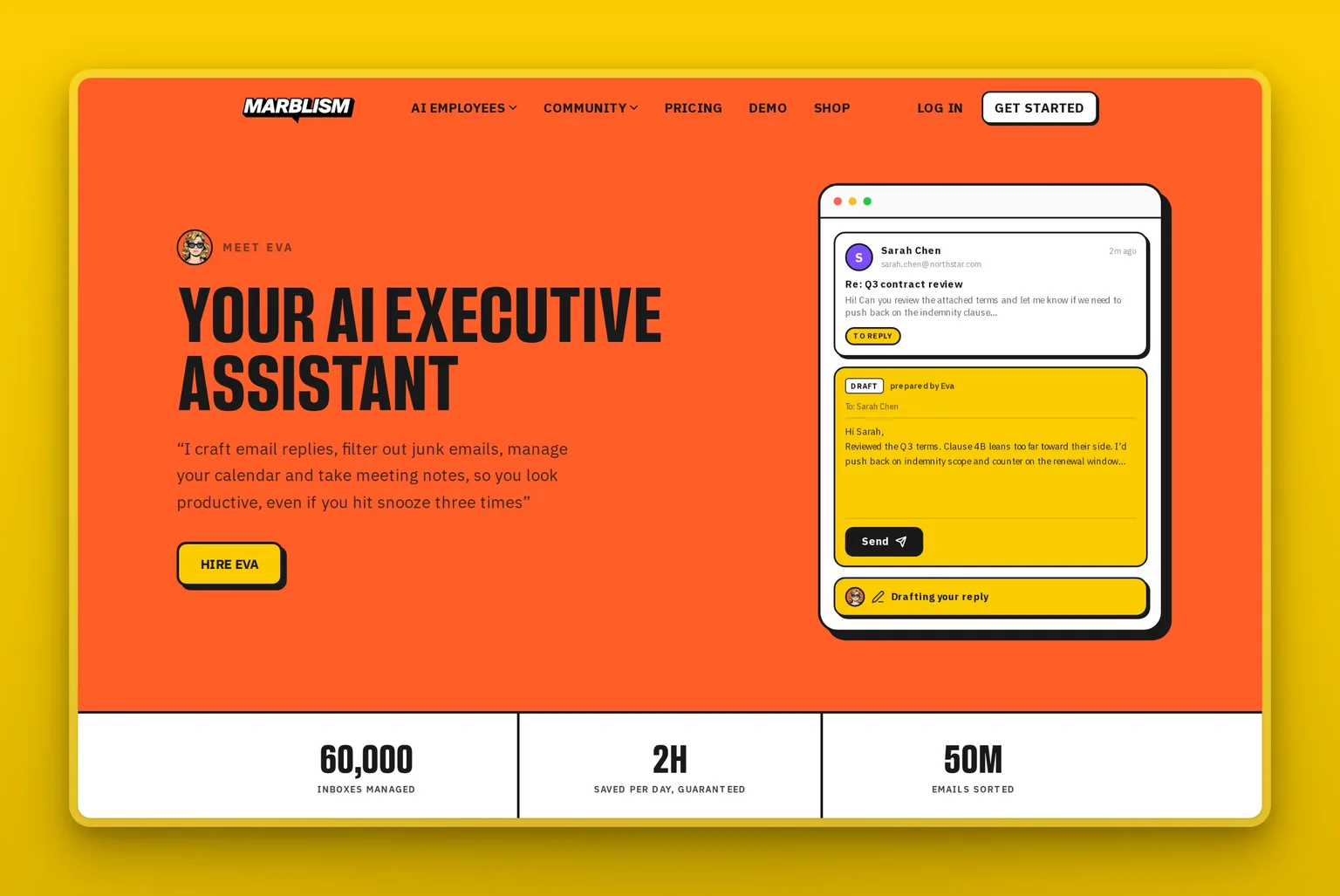
That gap is where Eva, Marblism's AI executive assistant, picks up. Eva triages incoming mail, prioritizes by context, and drafts replies for your approval. Across what Marblism reports as 60,000 inboxes and 50 million emails sorted, the sorting still happens. The difference is someone is also doing the work the sorting points to.
"Eva is good at orrganising [sic] the inbox and drafting replies. Yes, you need to read over and amend them but it really is a time saver and set up correctly the promtps [sic] are good and help you stay on top of your business."
Darren Laws, 5 stars, GB (posted 2026-07-26), Trustpilot
Marblism is rated 4.8 out of 5 on Trustpilot. Plans start at $24 per month billed annually, and every plan includes all seven AI Employees. See pricing.
For the full case on AI handling Outlook email end to end, this guide walks through the complete approach.
Frequently asked questions about organizing Outlook email
Setting up Outlook folders
What is the best way to organize email in Outlook?
The setup that survives is the smallest one that keeps everything visible. Turn on Focused Inbox so low-priority mail stops arriving in your main view. Create three action folders built around what you need to do with a message. Add color-coded categories to tag what a message is about without moving it.
Then write rules only for mail you genuinely never need to see. Those four steps, in that order, keep nothing important hidden and nothing unimportant interrupting.
How many folders should I have in Outlook?
Three action folders plus whatever category structure your work requires. One folder for messages needing a reply, one for messages waiting on someone else, one for what you will read later. Beyond that, use categories instead of more folders. The more folders you create, the more places a message can hide, and that is the way most Outlook setups fail: mail moved somewhere you stopped looking.
How do I change the order of email folders in Outlook?
Drag any folder up or down in the folder pane to reposition it. In New Outlook and Outlook on the web, grab the folder name and drop it where you want it in the list. Classic Outlook (Windows) works the same way. Folder order syncs from the server, so reorder on desktop and mobile picks it up.
Outlook conversations, shared mailboxes, and mobile
Can I organize Outlook emails by conversation?
Yes. Go to View > Messages > Show as Conversations, and Outlook groups every reply sharing a subject line into a single expandable thread. You can apply it per folder or to all folders at once. Unread messages still show bold at both the thread and message level. Conversation view also unlocks Ignore (future replies go straight to Deleted Items), Clean Up (removes redundant quoted text), and Mute (silences the thread without deleting it).
How do I organize a shared or team mailbox in Outlook?
A shared mailbox needs the same structure as a personal one, but split across people. Agree on folder names upfront and keep the list short, because every folder someone invents is a place the others stop checking. Categories work better than folders here: each person tags by client or status without moving the message out of the shared view. Rules apply to everyone on the mailbox, so limit them to the truly mechanical. When the manual setup stops scaling across people, that is the job Eva is built for.
How do I organize Outlook email on my phone?
The Outlook mobile app syncs folders, rules, and Focused Inbox from desktop, so most of the setup carries over. Swipe gestures (Settings > Mail > Swipe Options) let you file or archive with one motion. Two things do not sync: categories are not visible on IMAP-connected accounts in the mobile app, and custom Search Folders do not appear on mobile at all. If categories are core to your system and you connect via IMAP, tag on desktop and use Search on mobile.
Outlook and AI
Does Copilot replace folders, rules, and categories in Outlook?
No, not in the generally available product. Copilot in Outlook summarizes threads, drafts replies, and coaches tone, but it does not create folders, write inbox rules, or apply categories for you. Microsoft's opt-in Frontier preview (rolled out April 2026, not available to EU users) can move messages, archive, flag, and create rules on request, though Microsoft cautions that 'bulk automation across large sets of emails results may not be comprehensive.'
Even in Frontier, the four artifacts are what Copilot acts on, not what it replaces.